Guides & tips
Race Manager Guide for Pilots
From your first login to spotting: the essential Race Manager steps, with a short guide and video walkthrough.
Before every race: if you use Race Manager as an installed app, fully close it from your phone’s app switcher and reopen it. Simply returning to the home screen is not enough. This makes sure you start the race with the latest version.
The Race Manager shows you when to fly and whom to spot. Here are the essential steps for race day.
Watch the video guide
Want to see the steps on screen? Watch the video guide on YouTube (in German).
1. Install the app and create an account
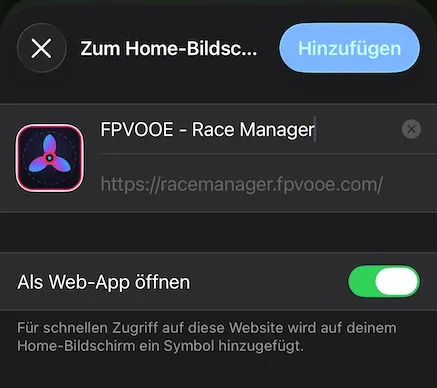
Open Race Manager on your phone and install it as a web app:
- iPhone: In Safari, tap the share icon → “Add to Home Screen” → “Add”.
- Android: In Chrome, open the three-dot menu → “Install app”.
Choose “Register” and create an account with your racing name, email address and a password of at least twelve characters. Confirm your email using the link in the confirmation message, then log in. The app needs an internet connection.
2. Complete your profile and enable push
Open “Account” and fill in these three required details:
- Pilot photo: choose a picture and save it.
- Video system: the system you fly with.
- Systems your goggles receive: select every system you can watch in your goggles.
These details are required to enter a race and help assign spotters. Instagram is optional.
In your profile’s push notification settings, enable notifications on your device and allow them in the browser prompt. Keep all categories enabled and send a test notification to check that it arrives. On iPhone, this requires the installed home-screen app and iOS 16.4 or later. Keep an eye on the live page on race day too: device and battery-saving settings can affect push delivery.
3. Enter a race
Go to “Races”, open the race you want to enter and use its sign-up button. Registration must be open. If your profile is incomplete, the page shows which details you still need to add.
4. Know when to fly
The live view shows the bracket and your personal status at the bottom: whether it is your turn now, your turn next, or how many rounds remain before you fly. Your channel, such as R3, is shown alongside it.
When you are ready to fly, tap the alert that says it is your turn. The app displays your name with “ready”, and your name turns green in the heat. Your spotter can do this for you if your goggles are already on.
5. Spot correctly: four taps
The last pilot to fly a channel spots it the next time it is used. When the app says you are spotting now, it is your turn; the timing screen opens automatically.
Do not tap at the start tone! Your first tap is when your pilot passes through the start gate:
- Start: on the first pass through the start gate.
- Lap 1: on the next pass, after one complete lap.
- Lap 2: after the second lap.
- Lap 3: after the third lap.
After “Start”, the whole screen becomes a tap target. Each tap triggers a five-second lockout to prevent accidental double taps. If you make a mistake, use the rank suggestion option and check with race control if you are unsure. Race control confirms the result.
If your goggles cannot receive the pilot’s video system, count the laps by watching from outside. Eliminated pilots still have spotting duties until the Grand Final.
6. Change spotters and find help
Tap the status showing who is spotting you, choose the option to change spotters, then select a pilot. The change takes effect immediately for your active heat, not for the entire rotation.
You can find the full help guide through the “?” in the top right of Race Manager.